Player development
Player development lets you rate your players' skills from 1 to 10, see where each player and the whole squad stand, and follow their development month by month. Everything belongs to a squad, so the same person can have different ratings in two squads.
Get started
Tap the squad on the Squads tab to open "Manage squad". Under Player development, tap Skills, choose the squad's sport and tap "Set up skills".
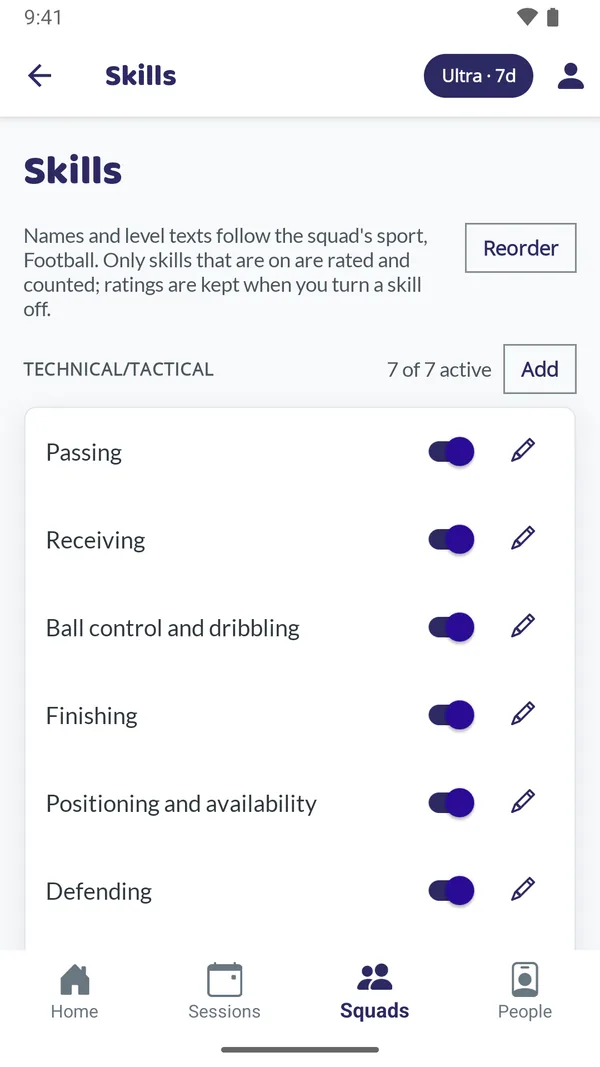
The skills are based on the FA's Four Corner Model and grouped into four cornerstones: Technical/tactical, Physical, Psychological and Social. The squad gets 20 skills – seven technical and tactical, five physical, four psychological and four social – with names and level texts for the sport. You can choose Football, Futsal, Ice hockey, Bandy, Floorball, Handball, Basketball or Other team sport. Ice hockey and bandy add Skating; floorball has it too, turned off.
Adjust the skills
- On and off
- Each skill has a switch. A skill that is off is not rated or counted, but its ratings are kept and count again when you turn it back on. At least one skill must stay on.
- Reorder
- "Reorder" lets you move skills up and down within a cornerstone.
- Your own skills
- "Add" in a cornerstone creates your own skill. The name can be at most 40 characters and must be unique in the squad.
- Names and level texts
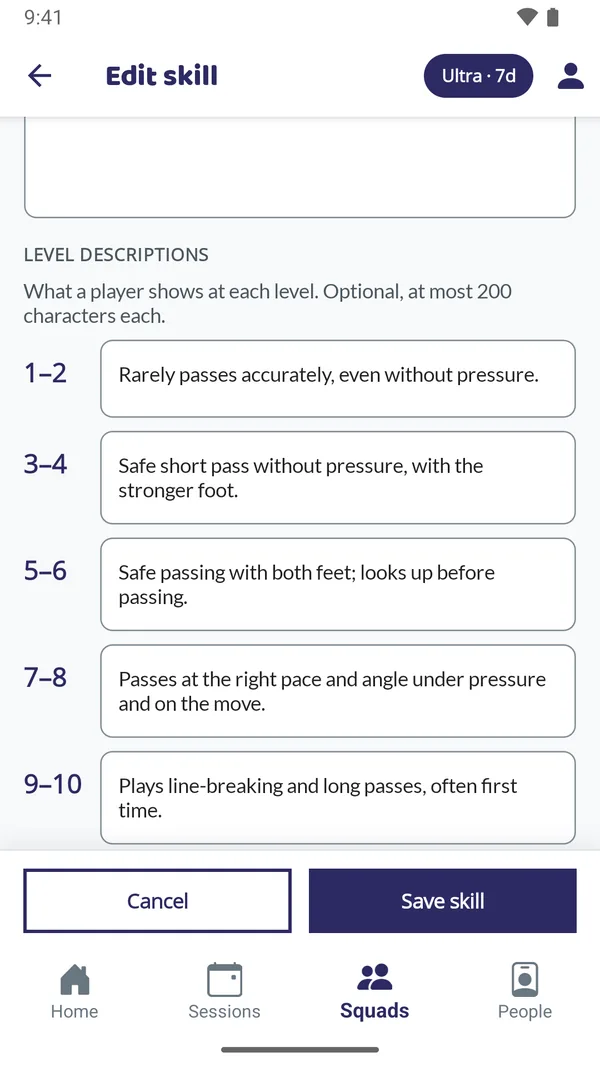
- Tap a skill to change its name, description and what a player shows at levels 1–2, 3–4, 5–6, 7–8 and 9–10. The level texts are optional, at most 200 characters each. A standard skill's cornerstone cannot be changed.
- Delete
- Your own skills can be deleted; standard skills are turned off instead. A deleted skill disappears from every view but stays in the saved history.
- Change sport
- If you change the sport in "Manage squad", the standard skills get that sport's texts. Texts you have changed yourself and all ratings are kept.
Rate a player
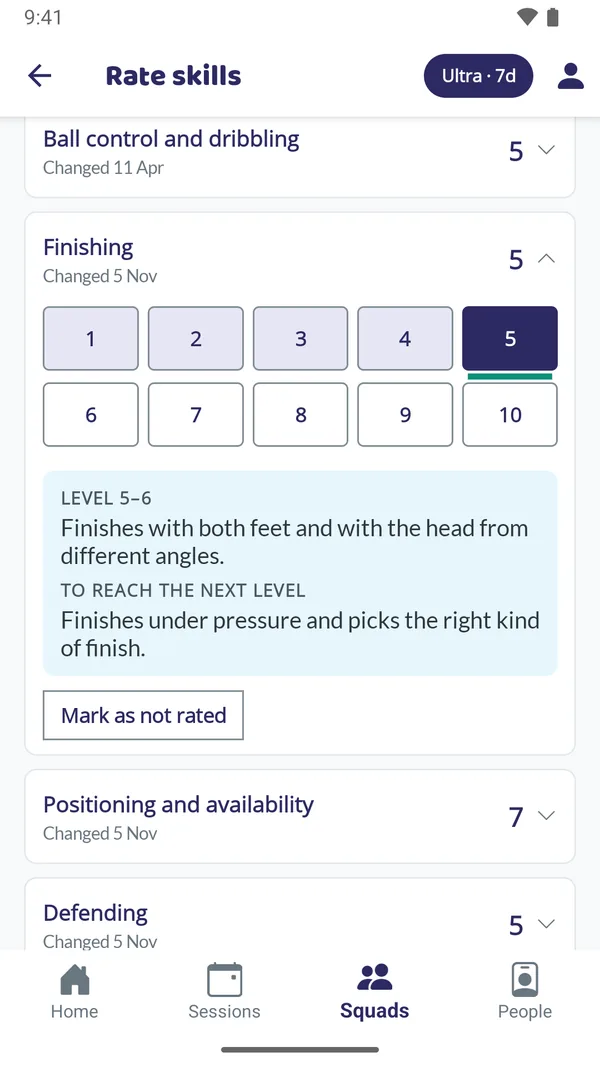
Tap a player in the member list in "Manage squad" to open the player profile, then tap "Rate skills". Tap a skill and choose a value from 1 to 10. The value is saved at once, so there is no save button.
The scale is based on the age group: 5 is the age group's level. Once you have chosen a value, the app shows what the level means and, under "To reach the next level", what the player needs to show to move up. If you rated by mistake, choose another value or "Mark as not rated".
Quick rating
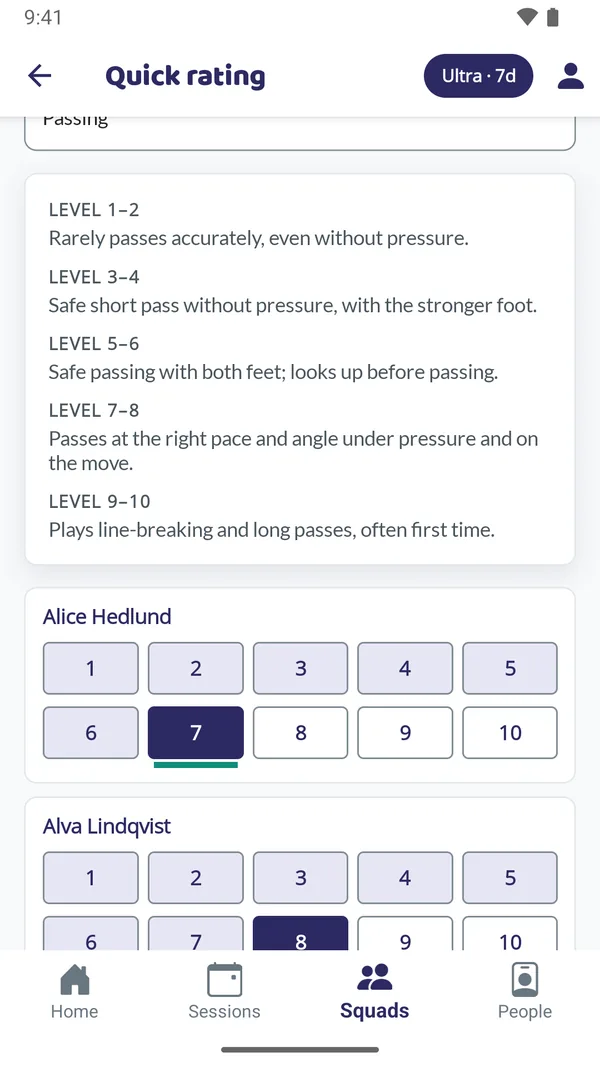
"Quick rating" under Player development rates one skill for the whole squad at once. Choose the skill, read the level texts at the top and set a value for each player. It suits a practice that focused on that one skill.
The player profile
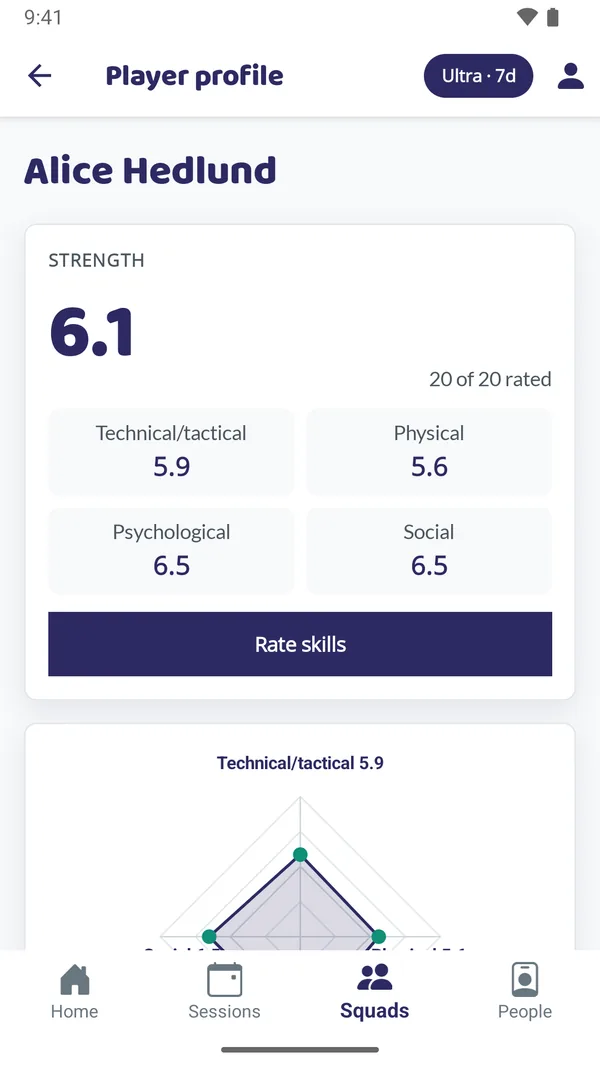
- Strength
- The player's overall value with one decimal, and the average in each cornerstone. A cornerstone's average uses the skills that are rated, and strength is the average of the cornerstones, so each cornerstone counts the same however many skills it has. A skill that is not rated never counts as 0.
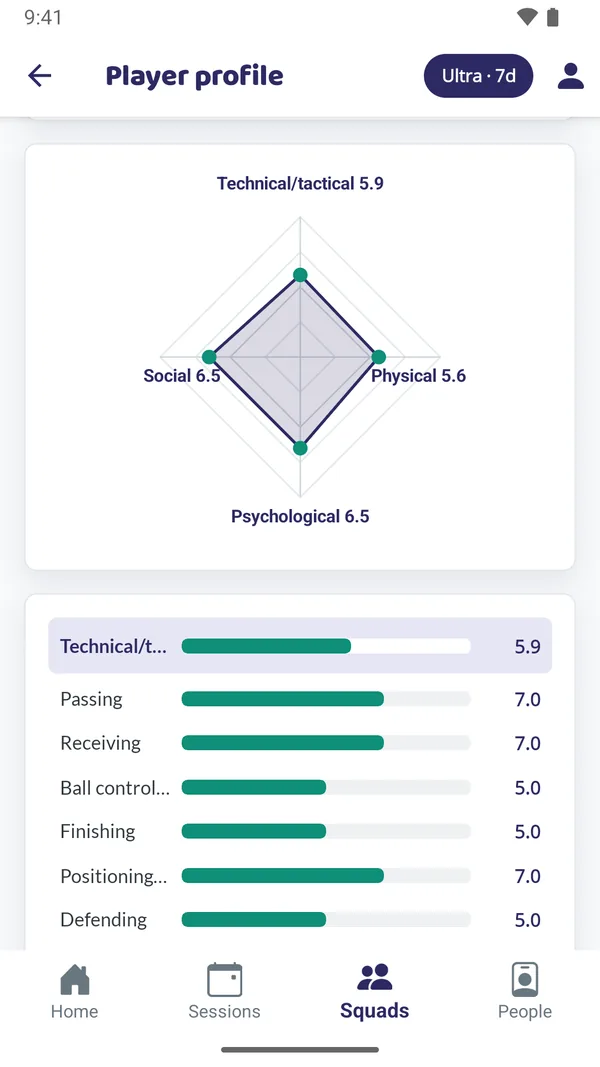
- Radar chart
- The four cornerstones on a scale from 0 to 10.
- Bars
- Each skill as a bar, grouped by cornerstone. A bar is red below 3, yellow from 3 to just under 5 and green from 5. Train to turn the bars green.
- Notes
- A free-text field of up to 2000 characters, saved as you type.
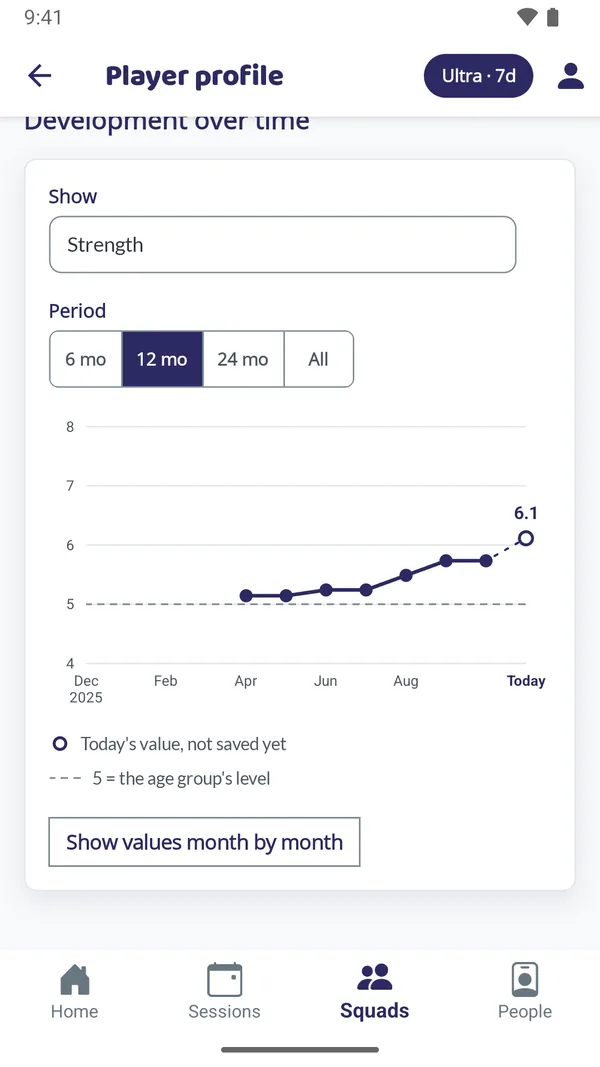
- Development over time
- A monthly curve for strength, the four cornerstones or a single skill. Needs Ultra.
Strength in team draws
Each member has a value from 1 to 10 that is used when teams are balanced. Once the squad has skills, you choose under "Strength in team draws" how that value is set:
- Set by hand
- You set each player's value in the member list.
- Calculated from skills
- The value follows the player's strength, rounded to a whole number (6.5 becomes 7). Players who are not rated keep the value you set. The values you set by hand are kept and come back if you switch back.
Squad statistics
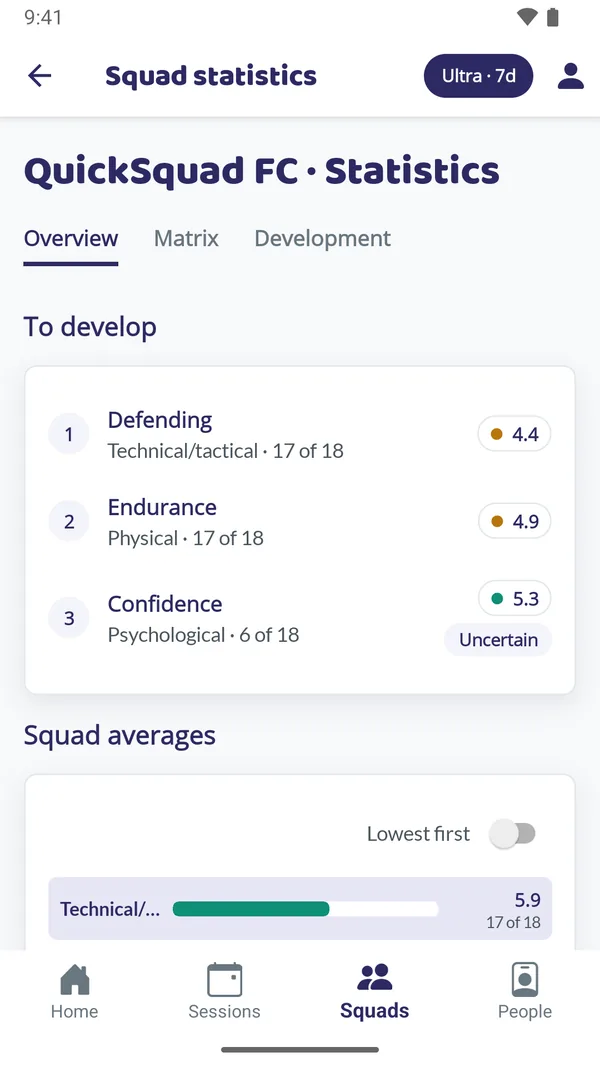
"Squad statistics" under Player development shows the whole squad on three tabs. It needs Ultra.
- Overview
- "To develop" lists the squad's three skills with the lowest average. "Uncertain" means fewer than half of the players are rated on that skill. "Squad averages" shows the average for every skill and cornerstone and the squad's strength, with how many players each average is based on, for example 11 of 14. "Lowest first" sorts the skills within each cornerstone.
- Matrix
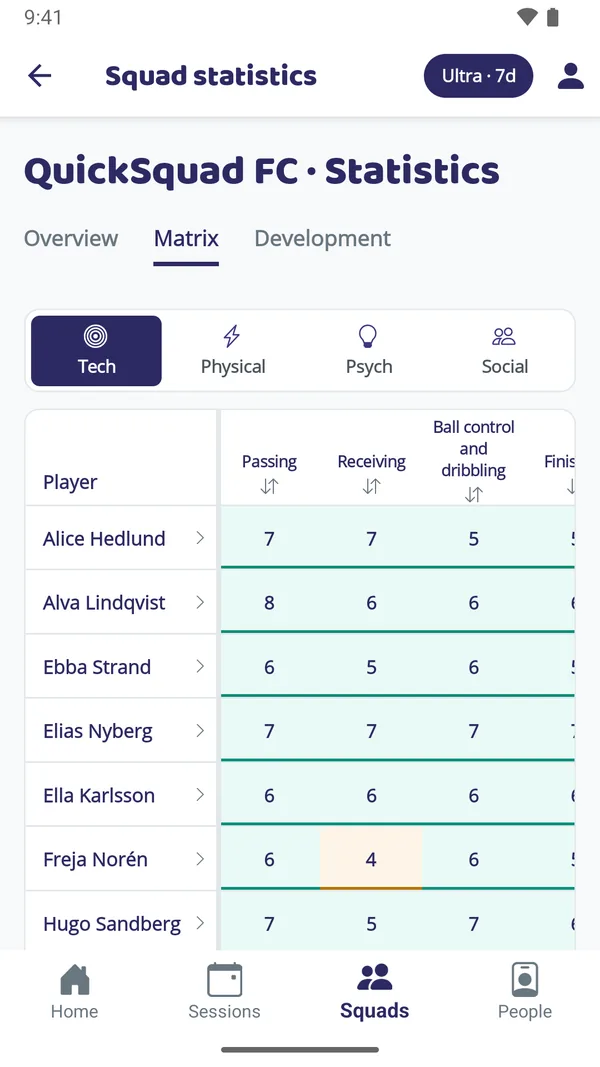
- One row per player and one column per skill, with each cornerstone's average, the player's strength, and the squad average at the bottom. Tap a skill to sort highest first, again for lowest first, and a third time for name order. The matrix sorts by one skill at a time, not by strength. On a narrow screen it shows one cornerstone at a time. Tap a name to open the player profile.
- Development
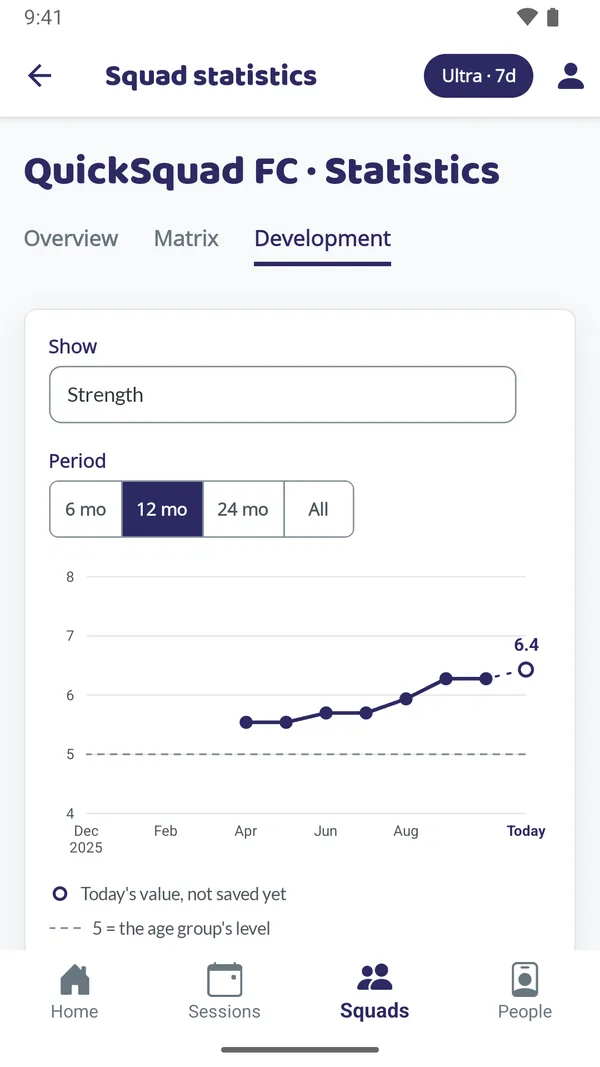
- The squad's strength or the four cornerstone averages per month, for 6, 12 or 24 months or everything saved. Today's value is a hollow point joined by a dotted line, and a month without a saved value leaves a gap in the line. "Show values month by month" lists the numbers as text.
History is saved every month
On the 1st of every month, at midnight in the squad's time zone, every player's and the squad's values are saved. The curves are drawn from them: the point for November shows how things stood when October ended. The values are saved the next time the app syncs or you open a player profile or squad statistics, so the app does not need to be open at midnight. History starts the month after the squad's first rating.
What needs Ultra
Skills, ratings, the player profile with bars and notes, and the calculated strength all work without Ultra. Squad statistics and the curves need Ultra. Without it they show a locked card with only a count, for example how many skills need developing or how many months are saved. History is saved anyway, so the curves are there when you activate Ultra.
On Windows, Ultra is activated and extended in QuickSquad on your phone. When your account has Ultra, the statistics show on Windows too.
Write with respect
Ratings and notes are your working notes as a coach, and the app does not share them with players or their guardians. Write them so that you could show them to the player and their guardian, and do not record information about health or diagnoses. Read more in the privacy policy.